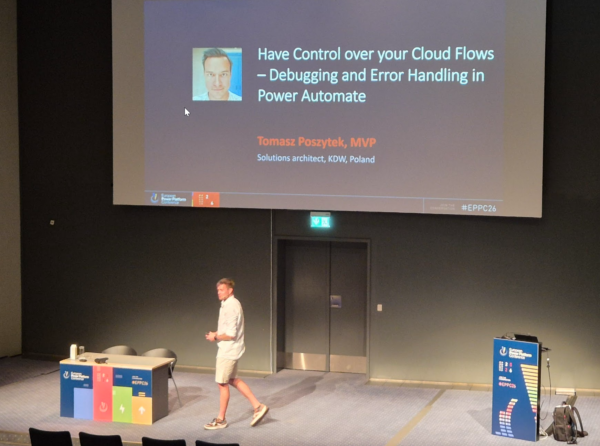

Error handling and debugging in Power Automate Cloud Flows is one of those topics that doesn’t get nearly enough attention — until something breaks in production. At EPPC26, Tomasz Poszytek from Konsultanci Digital Workplace walked through every layer of the problem: from basic debugging tricks to production-grade try/catch patterns and custom logging via Application Insights.
The Coming Pressure on Flow Requests
Tomasz opened with a forward-looking warning: right now, Power Platform request quotas are large enough that most flows never hit them. But once automation analytics becomes generally available and replaces the Center of Excellence, quotas will tighten. Every failed retry loop and runaway child flow will cost real resources. Building proper error handling now is not just good practice — it’s inevitable.
Debugging: Your Options Today
When a flow fails, you have more tools than most makers realise:
- Run history — use Edit Columns in parent-child scenarios to display the parent flow name alongside child runs.
- Static Results — mark any action to return a predefined response without actually executing it. Perfect for testing downstream logic without hitting live APIs or sending real emails.
- Copilot assistance — can sometimes identify root causes directly from the error message.
- Power Platform Admin Center → Monitor — success rates, connectors, triggers and makers across all environments, with configurable alerts.
- Application Insights integration — configure automatic export of flow execution logs for rich querying and long-term retention.
- Automation Center — dashboard for cloud flow errors, desktop flow failures, AI Builder credit usage.
- Process Mining (premium) — visualises your flow as a process diagram with execution time analysis and bottleneck identification.
Reactive vs. Proactive Error Handling
Tomasz drew a clear line: reactive means waiting until a user reports a problem, then digging through logs. Proactive means the flow notifies you the moment something goes wrong. The goal is always proactive — and it starts inside the flow itself.
The Try/Catch/Finally Pattern with Scopes
The foundation of proactive error handling is the combination of Scope actions and Run After configuration. A Scope fails if any action inside it fails. Combined with Run After, you get:
- Try scope — your main flow logic
- Catch scope — runs only if Try failed or timed out
- Finally scope — always runs regardless of outcome
Power Automate includes a built-in template for this pattern.
Inside the Catch scope, two expressions are essential:
result('Try_Scope')— returns a JSON array with details about every action that executed in the scope. Filter forFailedorTimedOutstatus to find exactly what broke. Note: only returns one level deep — nested controls require explicit result() composes at each level.workflow()— returns flow metadata including the instance ID, letting you build a direct hyperlink to the failed run for error notification emails.
Handling Business Exceptions
Some failures are predictable: an approval matrix with no configured approver, a required lookup that returns empty. For these, use conditions to detect the expected failure, send a targeted notification, and decide whether to stop or continue. If you continue after a caught error but still want the flow to appear as failed in run history, always close with a Terminate (Failed) action — otherwise caught errors make the flow look successful.
To raise an explicit exception mid-flow before the catch scope: use a Compose with div(1,0) to trigger a divide-by-zero — crude but effective.
Child Flows: Special Considerations
- Always return a response. If a child flow doesn’t respond, the parent retries up to 10+ times — duplicating every side effect.
- Set a timeout or retry policy on the child flow action.
- Pass the parent flow name as a parameter to the child flow for easier debugging when one child serves multiple parents.
Custom Logging Beyond Run History
The built-in run history has no search and no custom filtering — it becomes unusable for flows that run hundreds of times per day. Tomasz’s solution: custom logging to Application Insights via an Azure Function wrapped in a custom connector. The connector call goes into the Catch scope, so every caught exception is automatically logged with full context: flow name, instance URL, action name, error reason, and any custom business dimensions.
Takeaways
If you take one thing from this session: add a Try/Catch scope to every flow you deploy. The template is already there. It takes five minutes. The next time something breaks, you’ll know before your users do — and you’ll have a direct link to the failing instance.
- Use Static Results to test logic without side effects
- Use Scope + Run After for all production flows
- Use result() to get action-level failure details in the Catch scope
- Use workflow() to build a direct link to the failed run
- Always Terminate (Failed) to close caught errors explicitly
- Child flows must always return a response; configure timeout and retry policy
- For high-frequency flows: use Application Insights with a custom connector for queryable, long-term logs
Session: “Have Control over your Cloud Flows – Debugging” — EPPC26, Copenhagen, June 30, 2026
Presenter: Tomasz Poszytek (Konsultanci Digital Workplace)