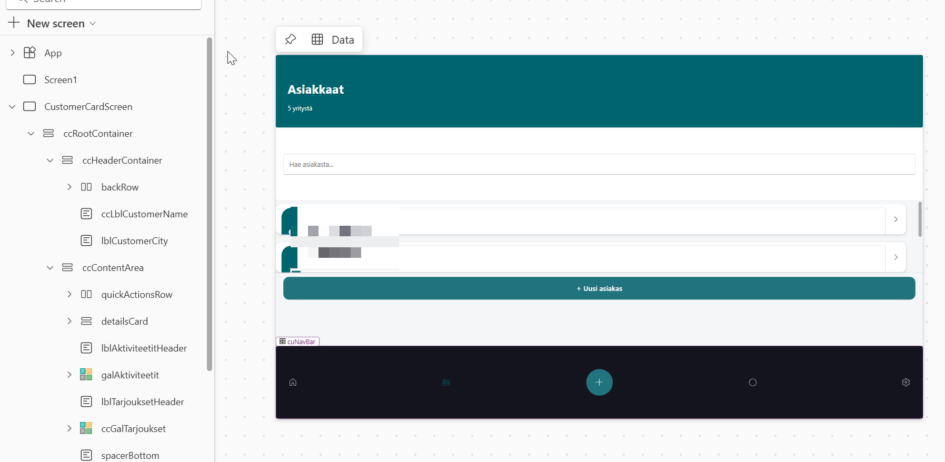
I have been building Power Apps Canvas Apps for years. The process has always had friction: design in the Studio, hit publish, wait, inspect the result, go back, adjust, repeat. It works, but it’s slow. So when I saw that there was a canvas-authoring MCP for Claude Code, I wanted to see if AI could take over the repetitive parts.
What worked well, what broke, and what I learned along the way.
This post is an honest account of what happened – what worked well, what broke, and what I learned along the way. The app is a lightweight CRM for demo purposes: five screens, sales pipeline tracking, and contact logging.
The Setup
The `canvas-authoring` MCP connects Claude Code to the Canvas App Studio through Power Apps’ coauthoring API. The configuration is a single `.mcp.json` file in the project folder. Claude did all these for me, I just told what I wanted.
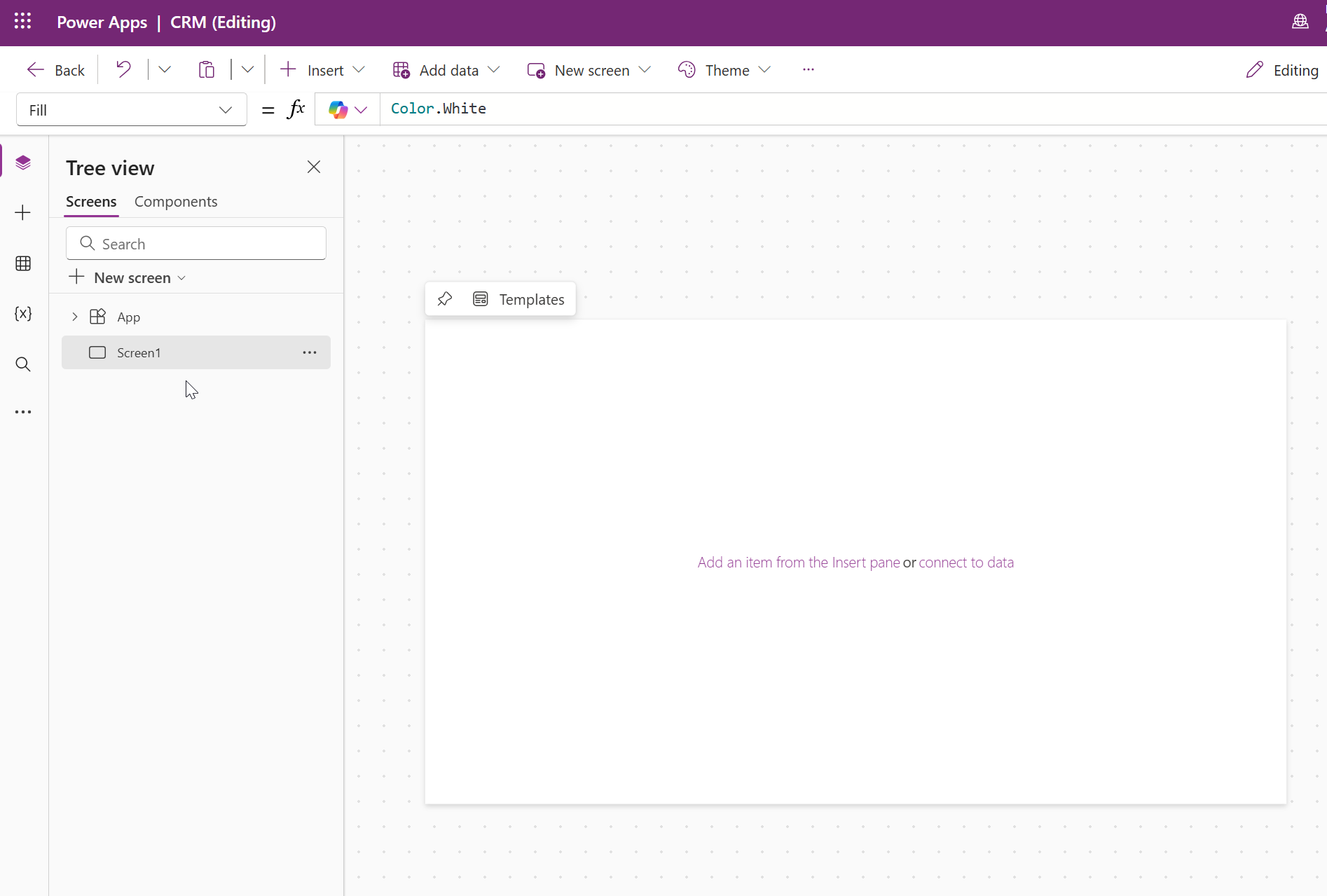
Once the MCP was configured, I created new Canvas App in the browser with Coauthoring turned on. Claude connects to that live session — any YAML Claude writes goes straight to your editor in real time, and any manual changes you make sync back to Claude when you ask. There’s no import/export cycle. No file pushing. Claude is a live co-editor.
Planning the Screens
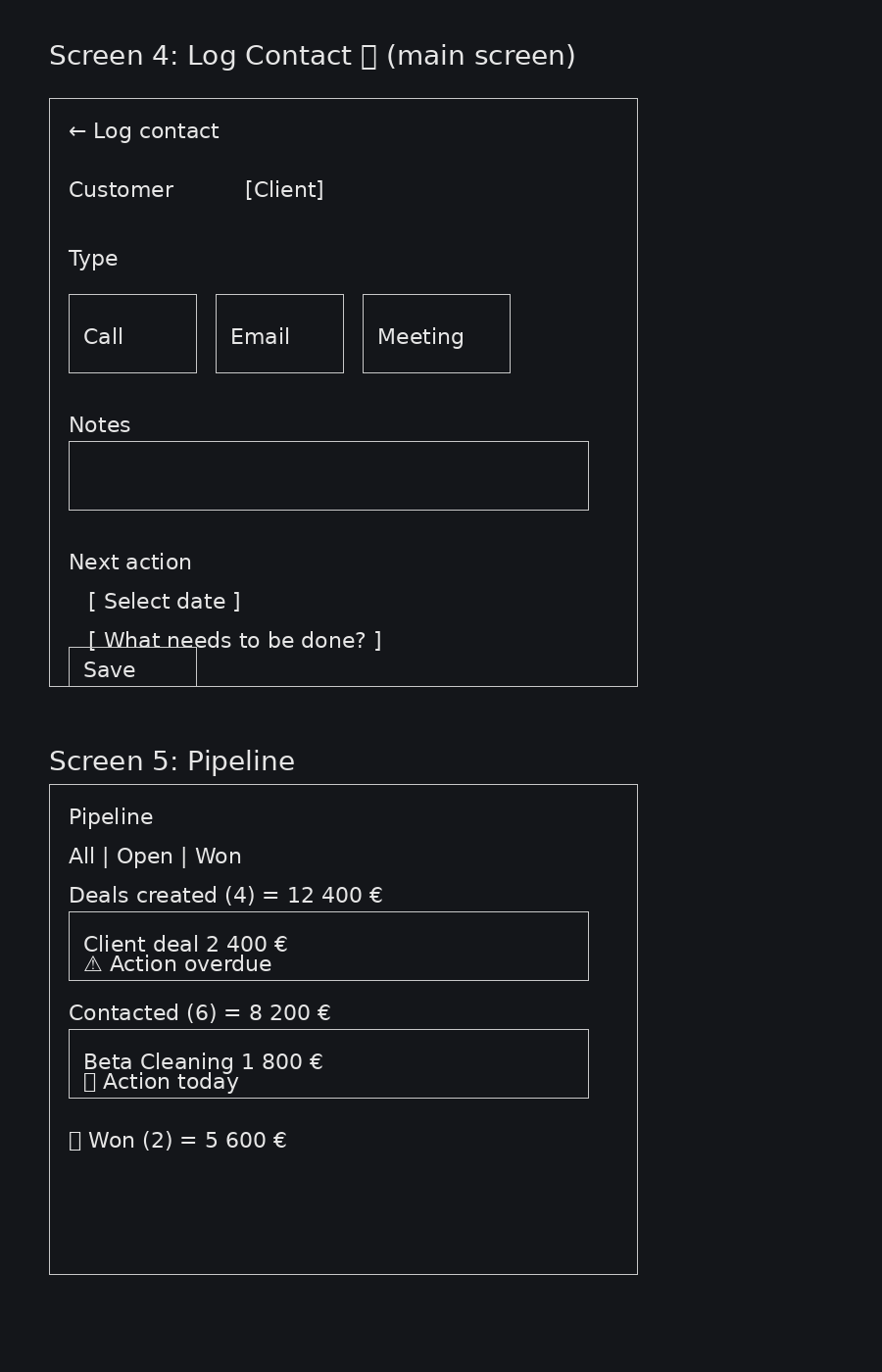
Before touching any code, Claude sketched the five screens on the chat:
- Home today’s actions and unhandled quote requests
- Customers searchable list with company count
- Customer Card details, quick dial/email buttons, activity history
- Log Contact fast form: customer + contact method + notes + next action date
- Pipeline deals by status with euro summaries
Since the SharePoint lists weren’t ready yet, all data would run on mock collections in `App.OnStart`. That was a deliberate choice — build the UI first, wire the data later.
Building Five Screens in Parallel
This is where Claude Code’s architecture shines. The `/canvas-app` skill runs a planner agent first — it designs the layout strategy, color palette, and data model, then writes a shared `canvas-app-plan.md`. After that, it fires one screen builder agent per screen, all simultaneously.
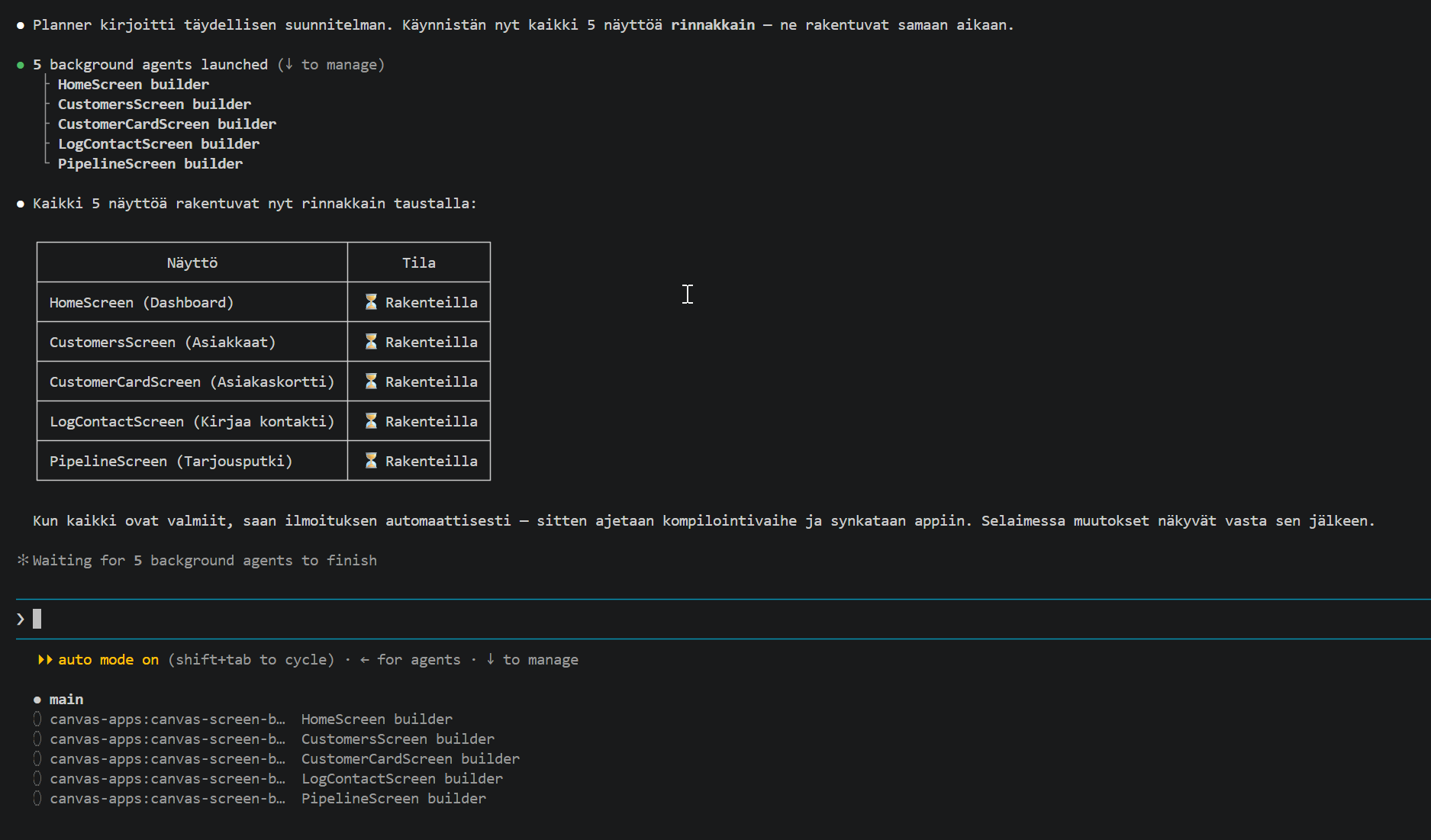
All five screens appeared in the Power Apps tree view within minutes. The color system, navigation, and control naming were all consistent across screens because every builder read the same plan document.
The mock data (five customers, five activities, five deals) came through cleanly. Navigation worked. Badges were color-coded by action date.
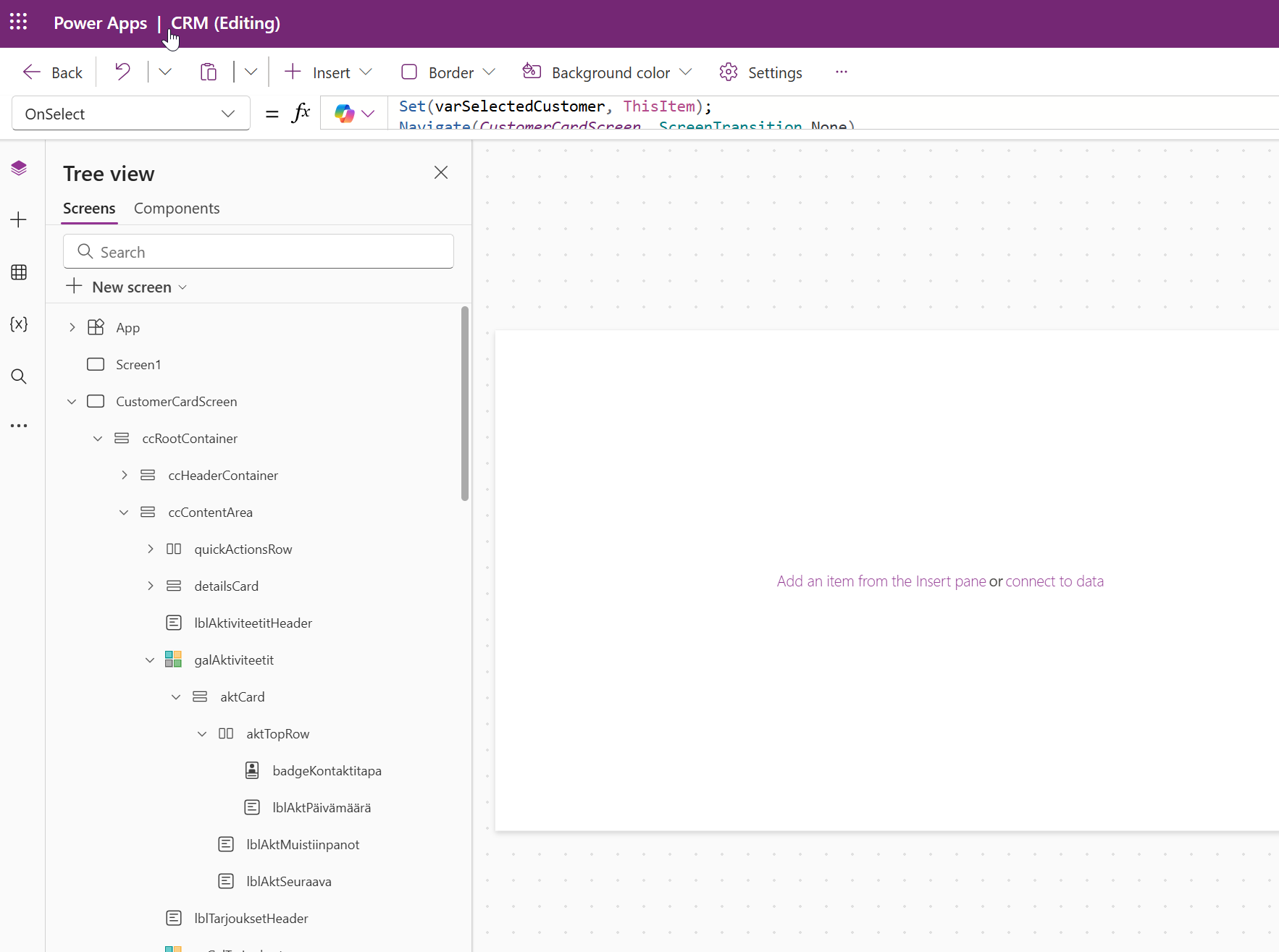
The Layout Problem
The first iteration had an obvious issue.
First iteration, the top and bottom bars are taking too much height.
The header and the bottom navigation bar each occupied roughly a third of the screen height. The content got the remaining third. On a landscape desktop screen, this looked completely wrong.
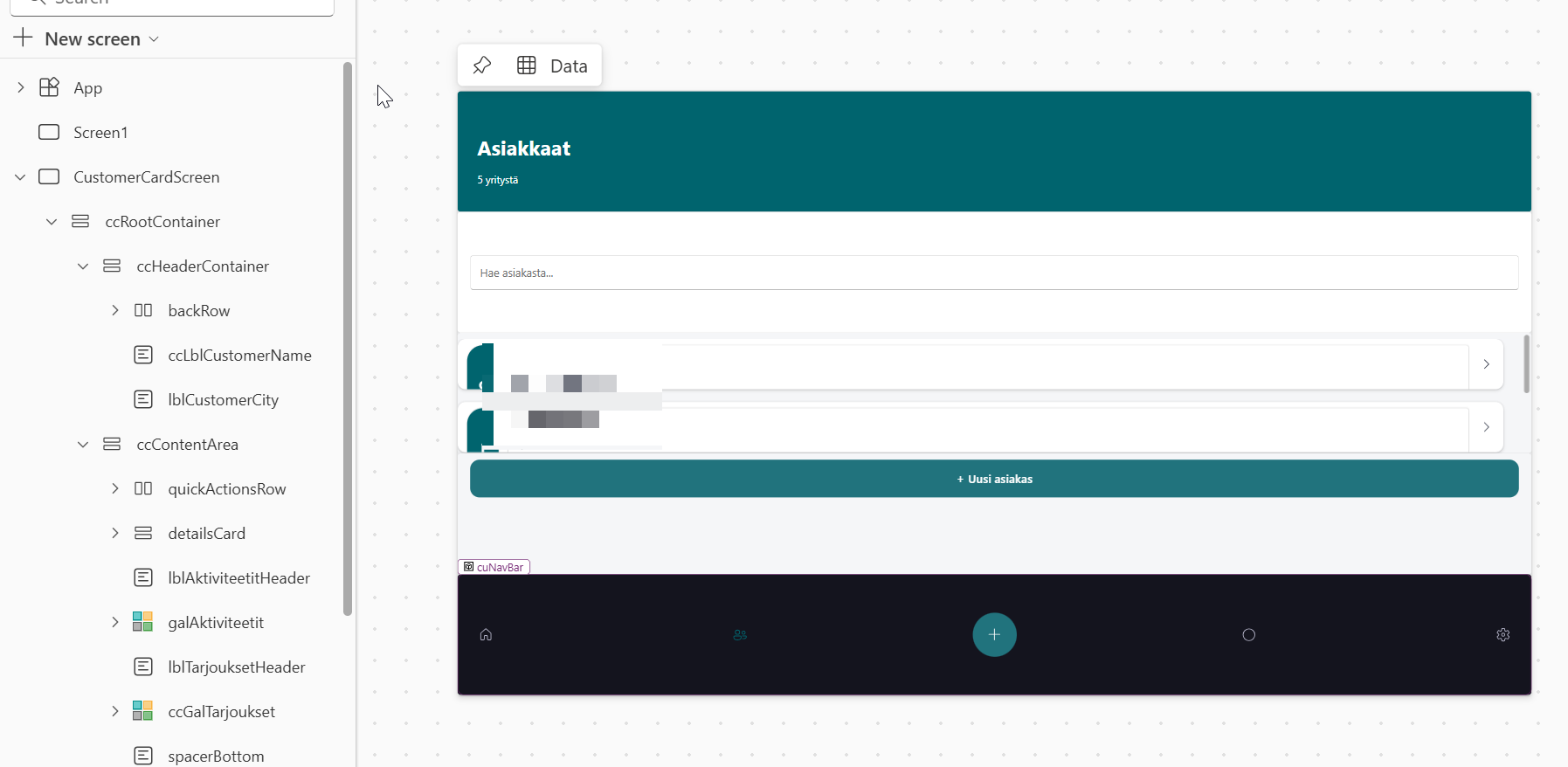
I knew the fix had to be somewhere in the AutoLayout container settings. I didn’t know exactly where. I told Claude what I was seeing and asked it to investigate the root cause.
Claude identified that the `FillPortions` property was missing from the header and navBar containers. It added them — but the layout still didn’t look right after the fix was compiled.
The reason: I had also changed the header direction from Vertical to Horizontal manually in the Power Apps editor, and when Claude pushed the corrected YAML via `compile_canvas`, it overwrote my manual change. We were going in circles.
Understanding the Root Cause
After a few failed attempts, I fixed HomeScreen manually in the Power Apps editor. That gave me a clean reference to work from.
The root cause turned out to be a Power Apps AutoLayout behavior that’s easy to miss. Claude did not understand it but I decided to fix it manually, it was faster.
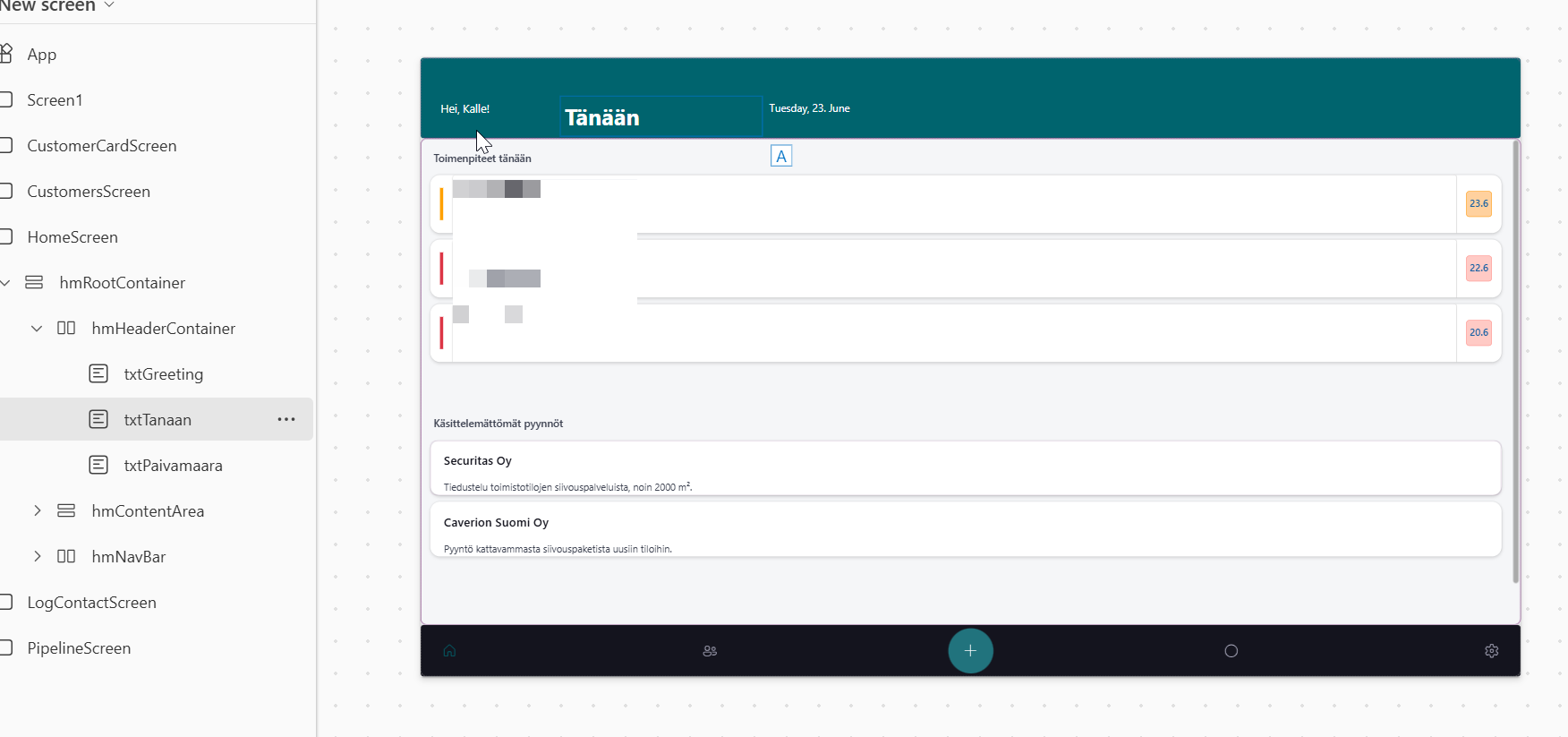
Copying the Fix to Other Screens
Once HomeScreen was correct, I asked Claude to replicate the same pattern to the other four screens. Claude synced the app state, read the corrected HomeScreen, understood the pattern, and applied it consistently.
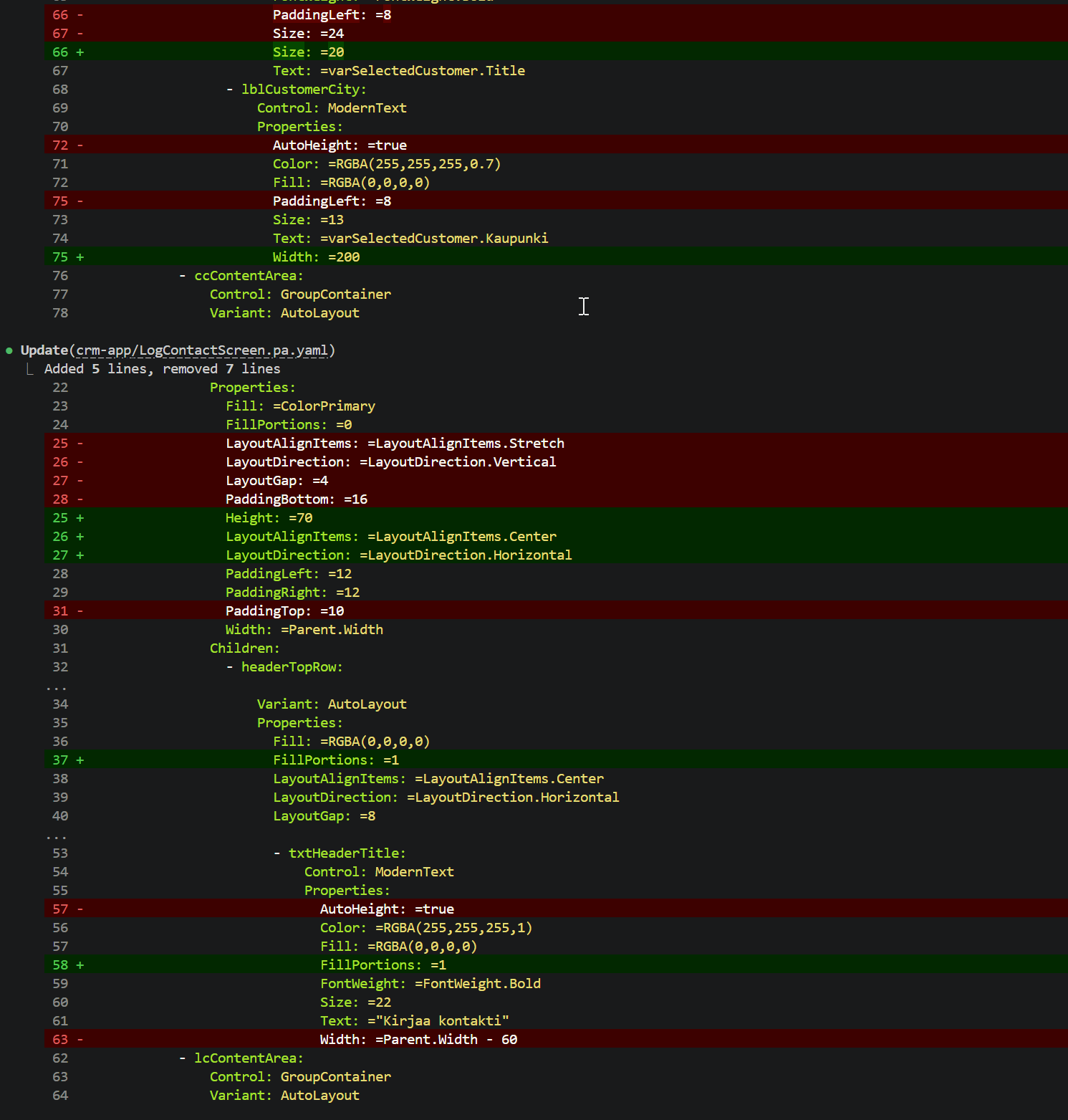
It did not help, the problems was there still. But It took me 10 minutes to fix the screens looking good. Then I asked Claude to check what did I change and learn from that.
What I Learned
- I should have given proper wireframes or design the structure my self
- Once I got something ready, I should have fixed it manually first before trying to tell Claude what is wrong
- Claude still did not get it right even I took screenshots what was wrong
- Claude does very fast many UIs which are quite usable and branded
- Claude Code definitely helps developing but skills needs to be on the person prompting Claude