
Agent instructions change constantly. Someone widens a trigger phrase, someone adds a knowledge source, someone rewrites a topic to remove a stale link. Each change is small and defensible on its own, and none of them tell you what happened to the answers.
A single test run does not tell you either. What tells you is the same test set, run at the same time every day, so that a drop shows up as a drop and not as an argument. That is maintenance, not innovation, and it is the reason to automate it: nobody runs a twenty case regression by hand on a Tuesday morning.
This is how I scheduled one, and the two things that surprised me while doing it.
What you need first
A test set in the Evaluate tab of Copilot Studio, a Power Automate flow, and an Office 365 Outlook connection to send the result somewhere a human will see it.
One thing worth saying out loud before you build this: a scheduled run consumes credits every time it fires. Since 1 September 2026 developer and trial environments are on usage based billing too, so the environment you prototype in is not free either. A daily twenty case run is a recurring cost, and it should be a deliberate one.
The finding: evaluation is asynchronous
Here is the part I did not expect.
The Evaluate Agent action does not return the results of the evaluation. It starts the run and returns immediately with a run identifier. If you connect it straight to an email action, you will get an email containing nothing useful, every morning, and it will look like it worked.
That single fact shapes the whole flow. You need to start the run, wait, ask whether it finished, and only then read the results. In Power Automate that means a Do until loop:
Recurrence, the schedule itselfEvaluate Agent, which starts the runInitialize variable RunState, which holds the current stateDo until, containingDelay 15 min,Get Agent Test Run Details, and aFor eachthat setsRunStatefrom the responseSelect,Create HTML table,ComposeSend an email (V2)
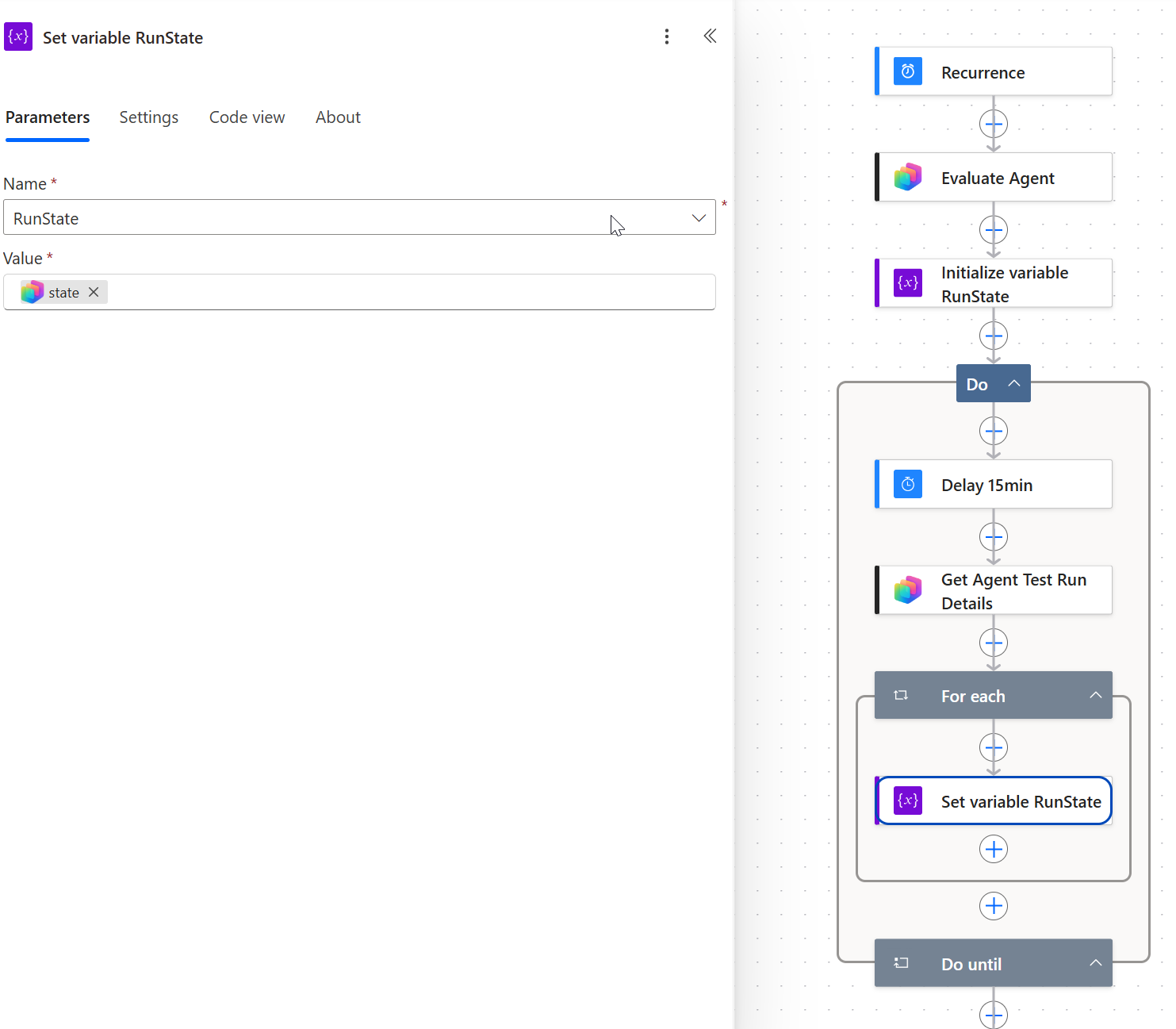
The whole flow. The loop exists because the evaluation call returns a run identifier, not a result.
The loop is not complexity for its own sake. It is the shape the API forces.
Why fifteen minutes
The delay inside the loop is a cost decision as much as a timing one. Every iteration is another call, and the run takes minutes rather than seconds. Polling once a minute would multiply the calls by fifteen and tell you nothing you did not already know fourteen minutes earlier.
Two things are worth guarding here. A Do until with no upper bound is an infinite loop by design: Power Automate stops it eventually at its own limits, sixty days or five thousand iterations, which is not a safety net you want to rely on. Set a count and a timeout explicitly. And decide what the flow should do when the run never completes, because silence is the one outcome that looks identical to success.
Where the report goes wrong
The second surprise is not in the API. It is in the email.
Select picks the fields you want and Create HTML table turns them into rows. That works, and the result is technically correct, which is exactly the problem. The metrics come back from the evaluation as a JSON string, and a JSON string placed in a table cell stays a JSON string:
[{"type":"GeneralQuality","result":{"data":{"abstention":"No","relevance":"Yes",
"completeness":"Yes"},"status":"Pass"}}]
Twenty rows of that, with a GUID in the first column, is what arrives in the inbox. Every value is there. Nothing is readable.
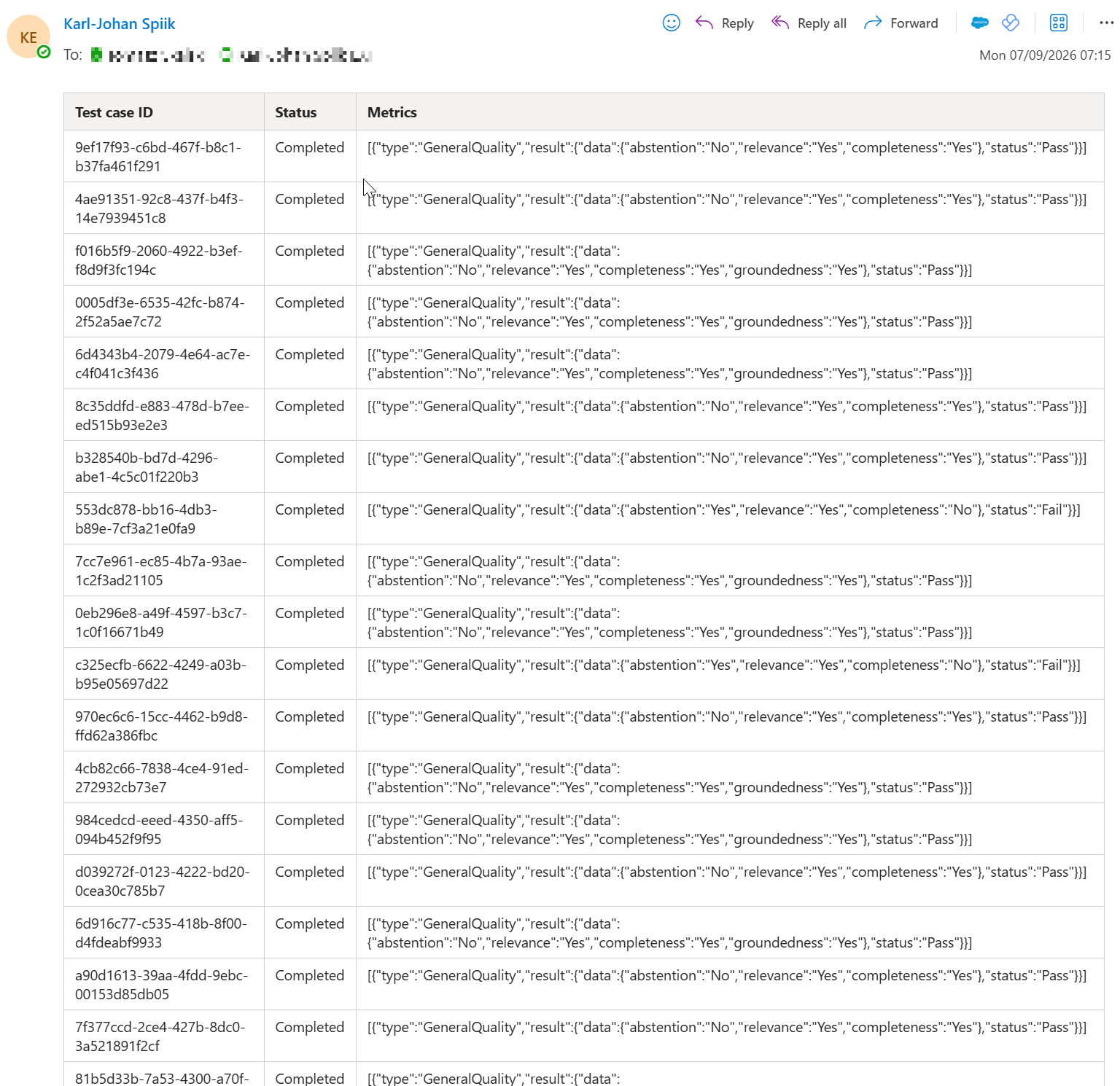
Technically correct, and unreadable. The failures are in there somewhere.
The fix is in the Select step, not in the email. Parse the JSON and give each metric its own column, so that abstention, relevance, completeness and groundedness are four columns with a tick or a cross instead of one column of syntax. Put a summary line at the top: eighteen of twenty passed, two failed. Then show the two failures with the question that failed and the reason.
Drop the rest.
That last part is the one I would argue for hardest. A passing test does not need a row, it needs to be counted. If the person reading the email has to scan twenty rows to find the two that matter, the report has failed even though the data is correct. A report is not an output, it is a decision aid, and the decision here is always the same: is anything worse than yesterday, and if so, what.
What the GUID is for
The test case identifier belongs in the email, but not in the first column. It is what you paste into Copilot Studio when you want to look at the failing case in detail, so it earns a place as small grey text under the question, not as the thing the reader sees first.
This is a small choice and it changes how the email reads more than anything else on the list. The first column is the one the eye lands on, and a GUID there tells the reader that this message was written for a machine.
What this leaves you with
A scheduled run, a loop that waits for it properly, and an email that answers the only question the reader has before they have finished reading the subject line.
The general lesson travels beyond this flow. When an API call returns immediately, check whether it returned an answer or a receipt. If it is a receipt, the polling loop is not an implementation detail you can skip, it is the feature.
If you have automated something like this, what did you cut from the report before it became useful?
What the change actually looked like
One new action and two edits. That is the whole thing, and it is worth being precise about it, because the report looked like something that needed rebuilding rather than something three expressions away from being useful.
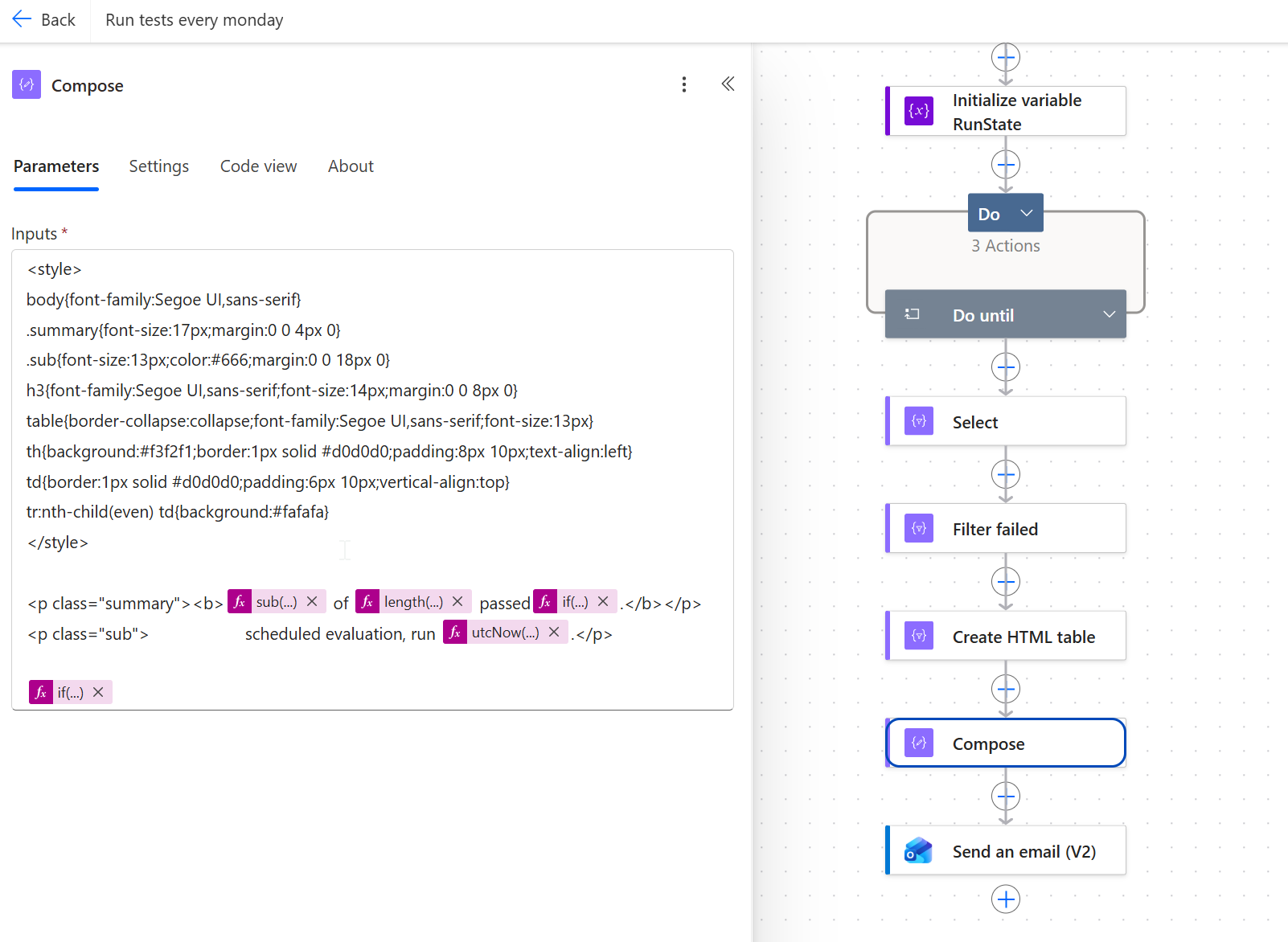
Filter failed is the only new action. Select and Compose were edited.
Select stops flattening the metrics and gives each one a column. The important part is that the value is a tick or a cross, not a string of syntax, and that a missing metric renders as a dash rather than an empty cell. Not every case returns groundedness:
Result:        @item()?['metricsResults'][0]?['result']?['status']
Abstention:    @{if(equals(coalesce(item()?['metricsResults'][0]?['result']?['data']?['abstention'],''),''),'–',if(equals(item()?['metricsResults'][0]?['result']?['data']?['abstention'],'Yes'),'✓','✗'))}
Relevance:     (same pattern, 'relevance')
Completeness:  (same pattern, 'completeness')
Groundedness:  (same pattern, 'groundedness')
Test case:     @item()?['testCaseId']
Filter failed is a Filter array action reading the output of Select:
From:  @body('Select')
Where: @not(equals(item()?['Result'], 'Pass'))
Then point Create HTML table at @body('Filter_failed') instead of @body('Select'), so the table contains only the rows worth reading.
Compose builds the summary and decides whether there is a table at all:
<p class="summary"><b>@{sub(length(body('Select')),length(body('Filter_failed')))} of @{length(body('Select'))} passed@{if(greater(length(body('Filter_failed')),0),concat(', ',string(length(body('Filter_failed'))),' failed'),'')}.</b></p>
<p class="sub">Scheduled evaluation, run @{utcNow('d MMMM yyyy')}.</p>

@{if(equals(length(body('Filter_failed')),0),'<p>Every test case passed. Nothing to review.</p>',concat('<h3>Failed cases</h3>',body('Create_HTML_table')))}
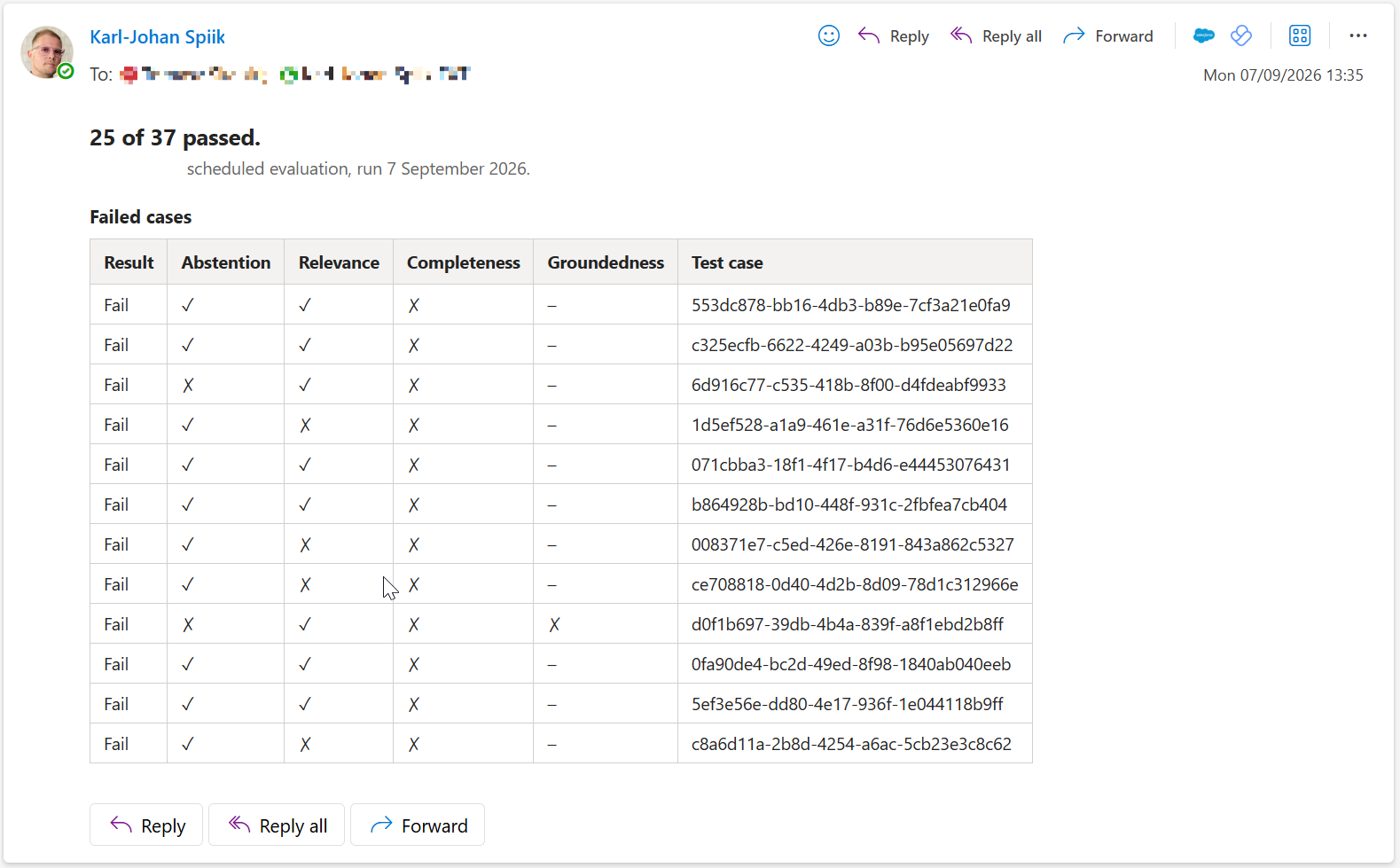
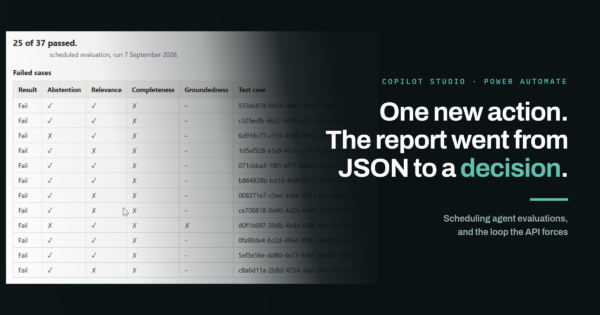
The same run, after the change. The first line is the answer, and the table only contains rows that need a decision.
The last expression is the one I would keep. On a good morning the email says that everything passed and stops, and there is no table to scroll past to find out that there was nothing to find.
One thing I could not do: replace the identifier with the question that failed. The run details return testCaseId, state and metricsResults, and the question text is not among them. If your response carries it under some other name, that column is a one line change and worth making.